- Product
- Pricing
- Lurna Weekly
- Lurna iPad



Connect Lurna to Claude via MCP. Generate study materials and notes within Claude and export them to Lurna in one click.
Go to Claude Customize → Connectors and click the Plus icon and select "Add custom connector"
Copy the MCP Server URL to your clipboard
Give the app a name and paste the MCP URL. Leave OAuth fields empty and click 'Add'.
Important: Refresh the page to see the new connector.
Once the app is created, in a new chat, press the Plus button, go to “Connectors” and ensure the Lurna connector is enabled.
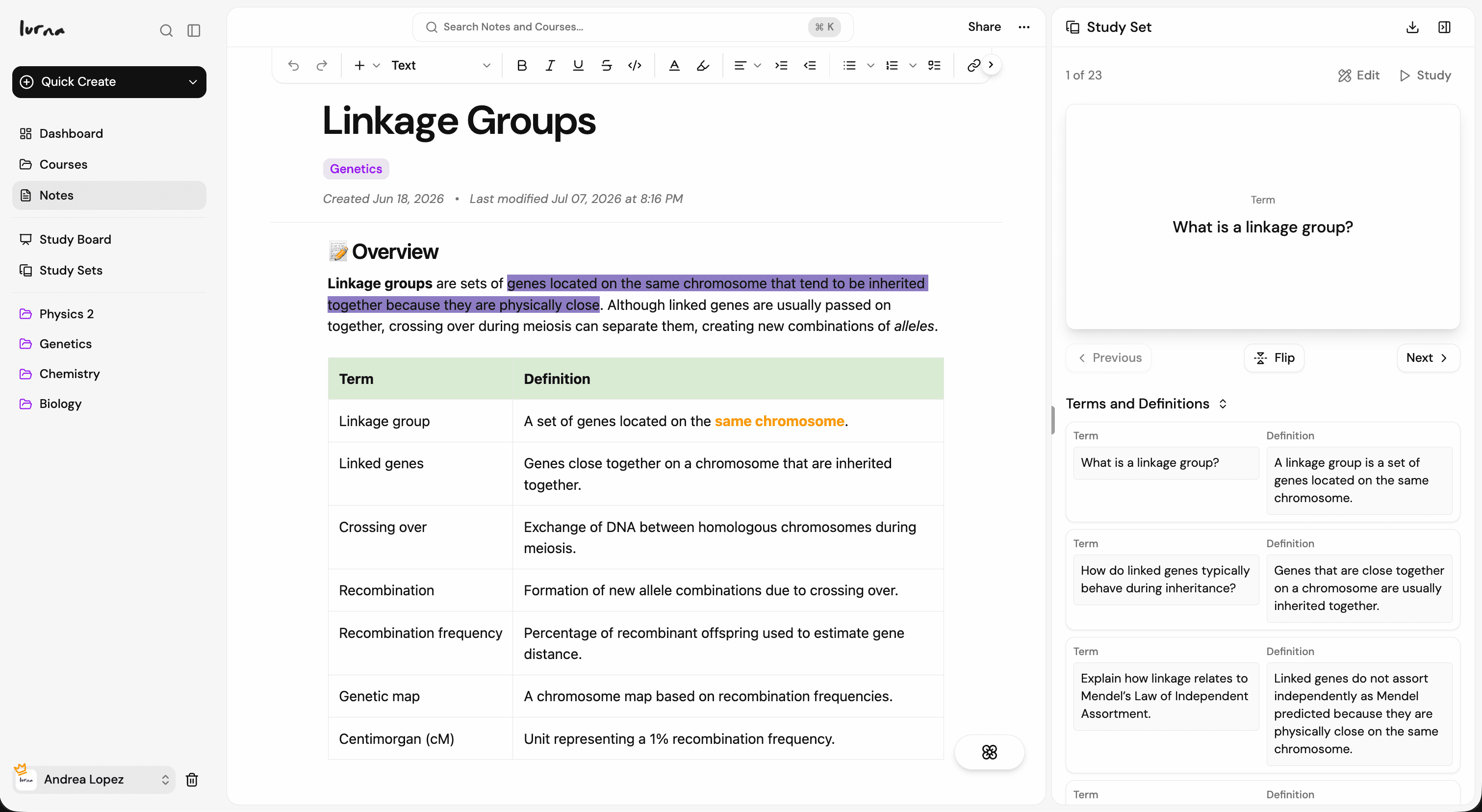
That's it! You can now use Lurna in Claude.
You can now ask Claude to create flashcards and notes on any topic. Try something like this to get started:
Click an example to copy the prompt to your clipboard
Make flashcards & notes in ChatGPT or Claude


Bring Lurna to your browser